

If you're looking to add one time fees or bottle deposits, you can do that in the billing and tax section of Bloom Settings. Let's look at the steps:
Step 1: Go to Billing Tax
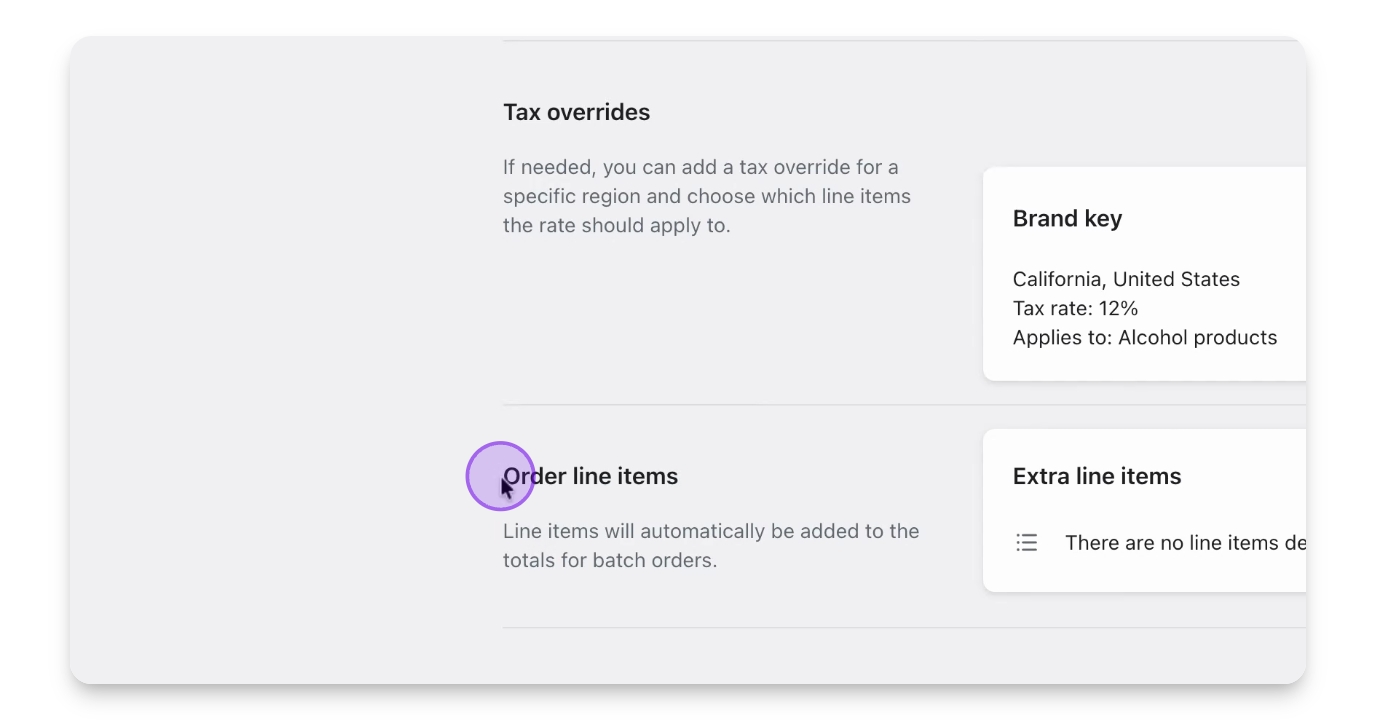
In Bloom Settings, navigate to the billing and tax section and scroll to the bottom to see Order line items.
Step 2: Add Line Items
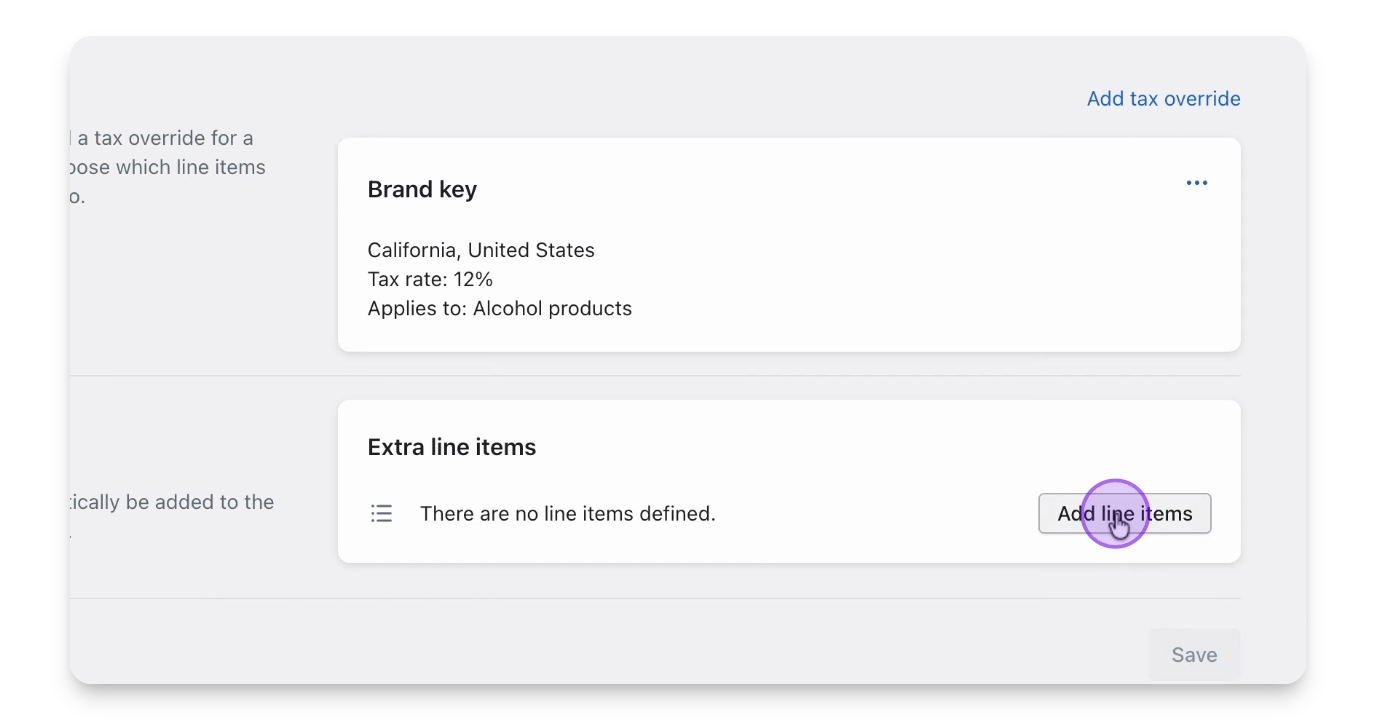
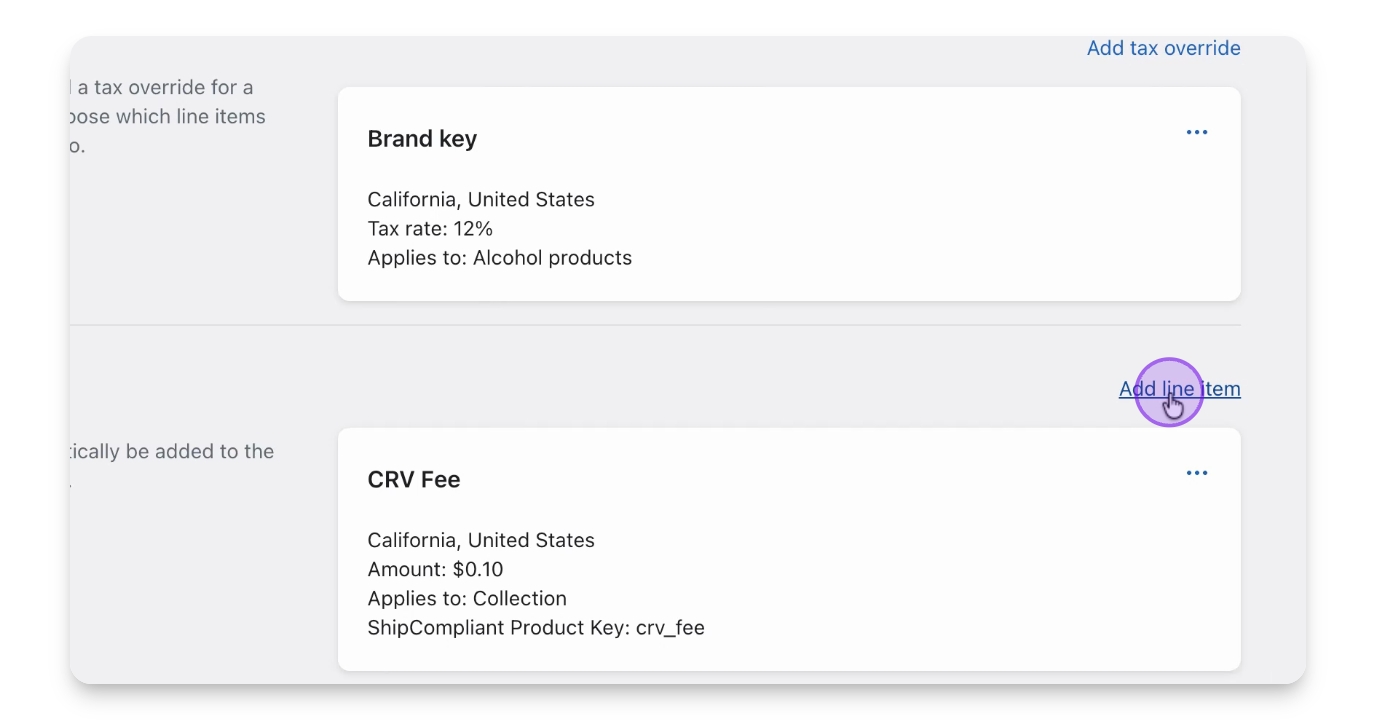
Click Add line items to create your fee options.
Step 3: Name Options
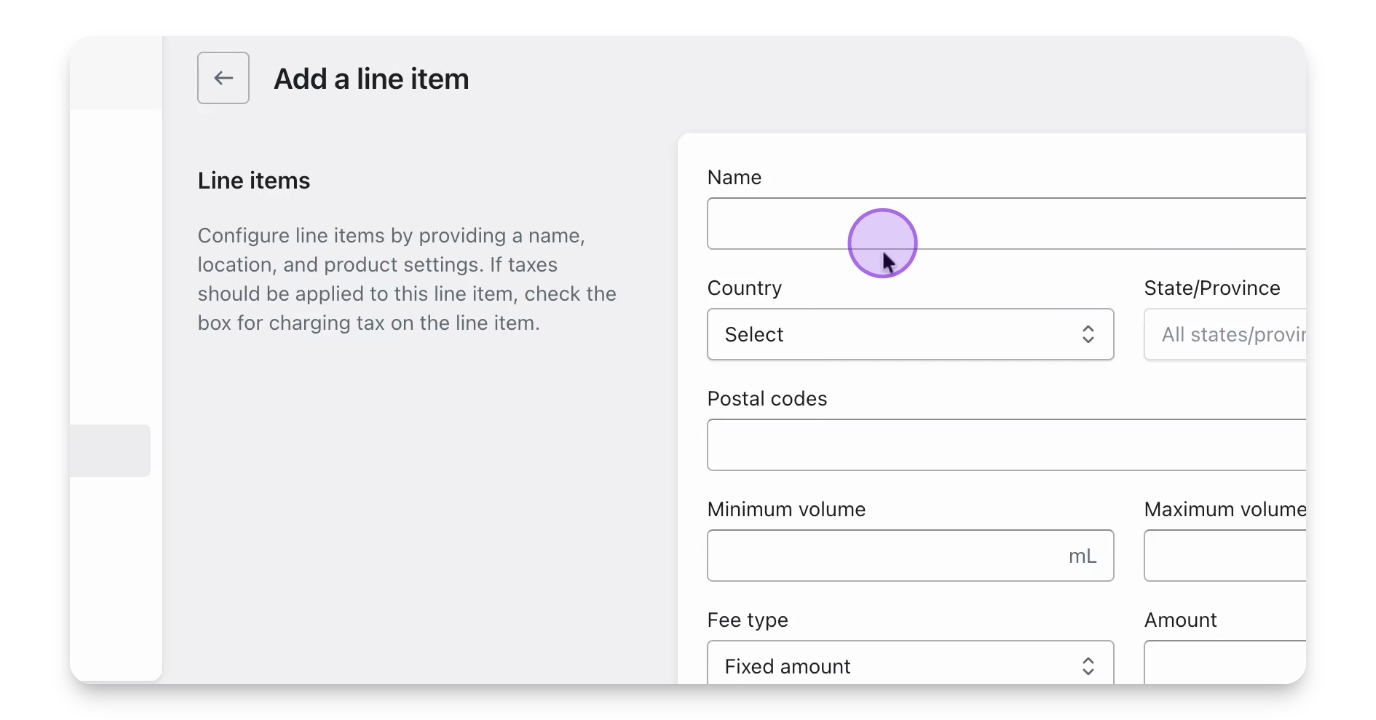
Name the options, for example, CRV fee, and select your country and state.
Step 4: Set Fee Amount
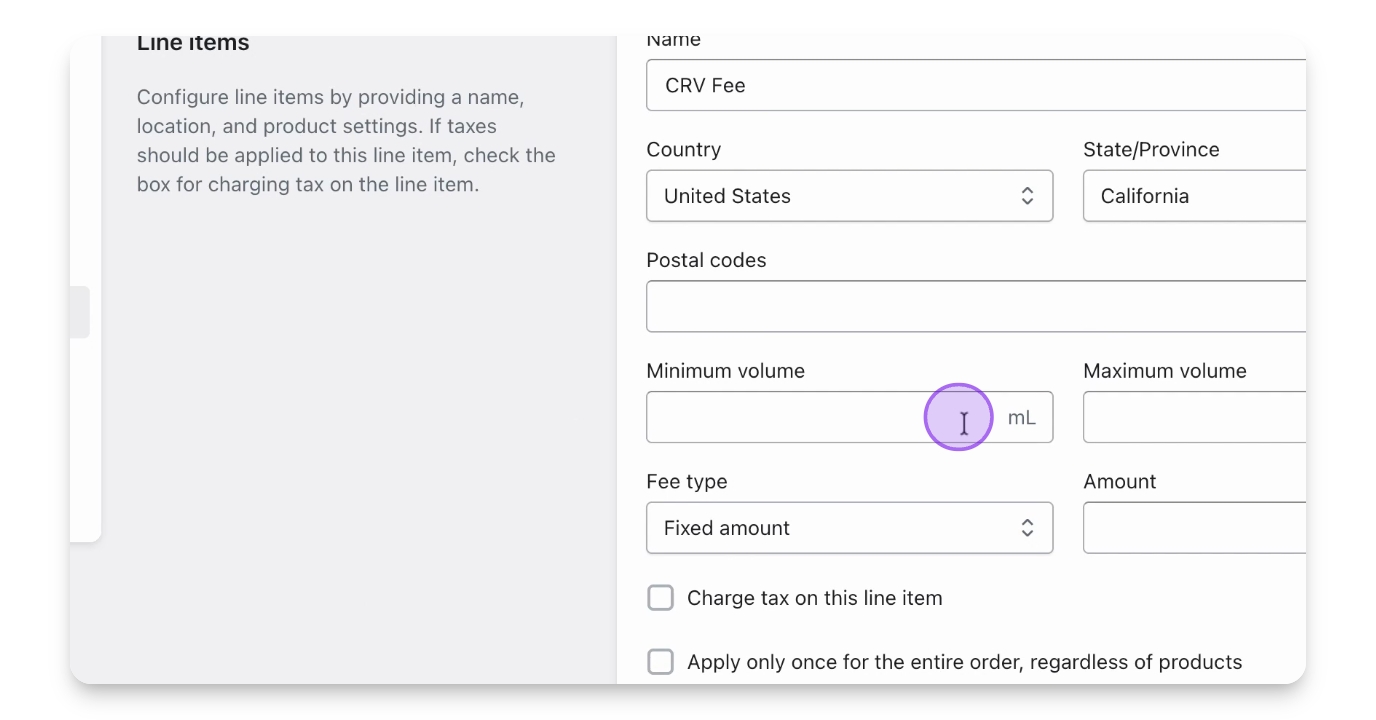
For this example, set a fee of 0.1 for 750ml bottles.
Step 5: Apply Fee to Products
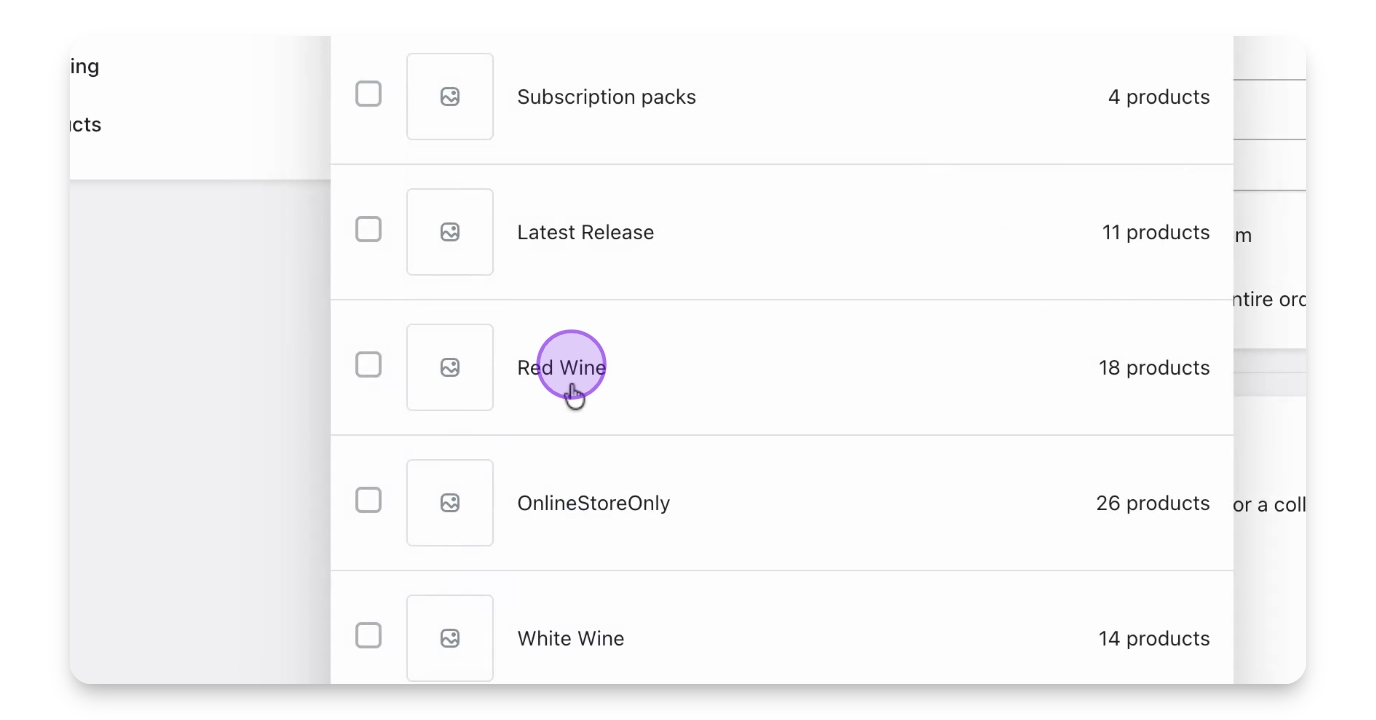
You can apply the fee to specific products or collections, for instance, all red wine will incur the fee.
Step 6: Add Processing Fee
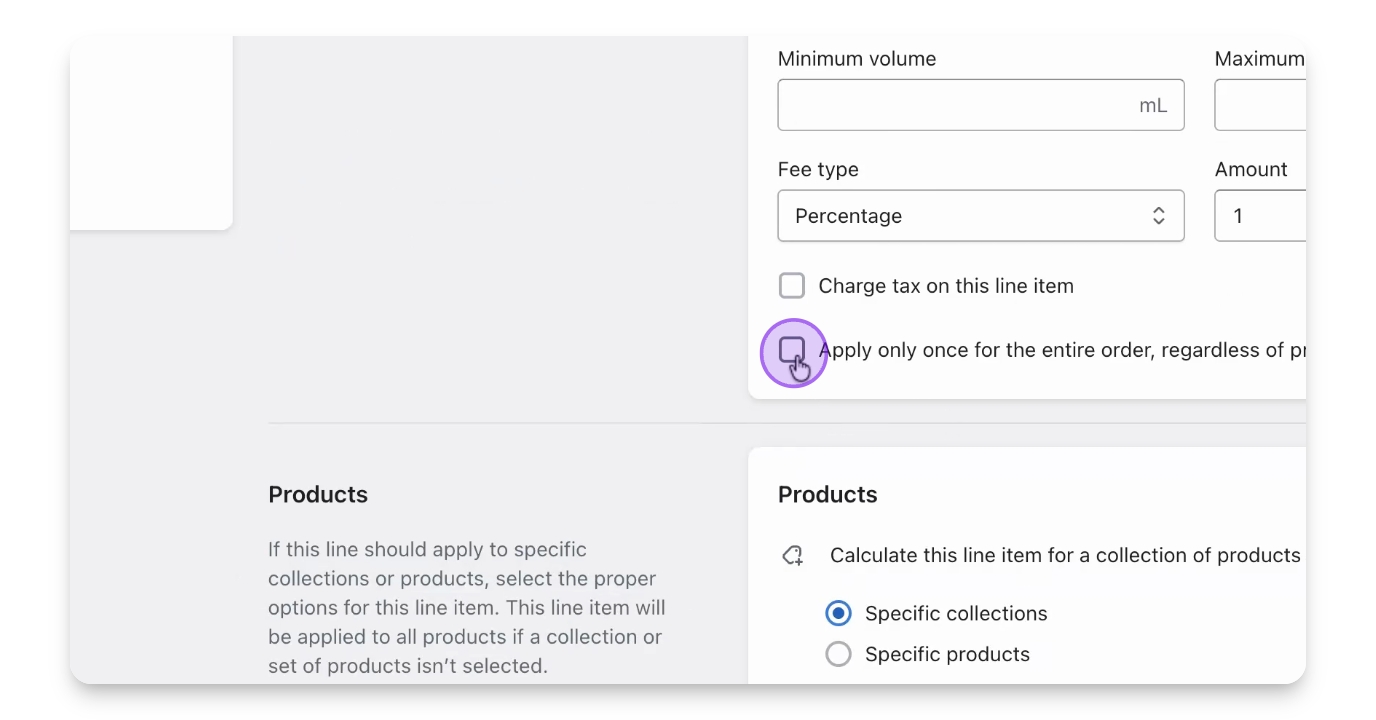
If you want to add a processing fee, specify it as a percentage of the order, for example, 1%.
Step 7: Apply To Entire Order
This processing fee can be applied to every order, adding this percentage on top of the order total.
Let us know if you have any questions.