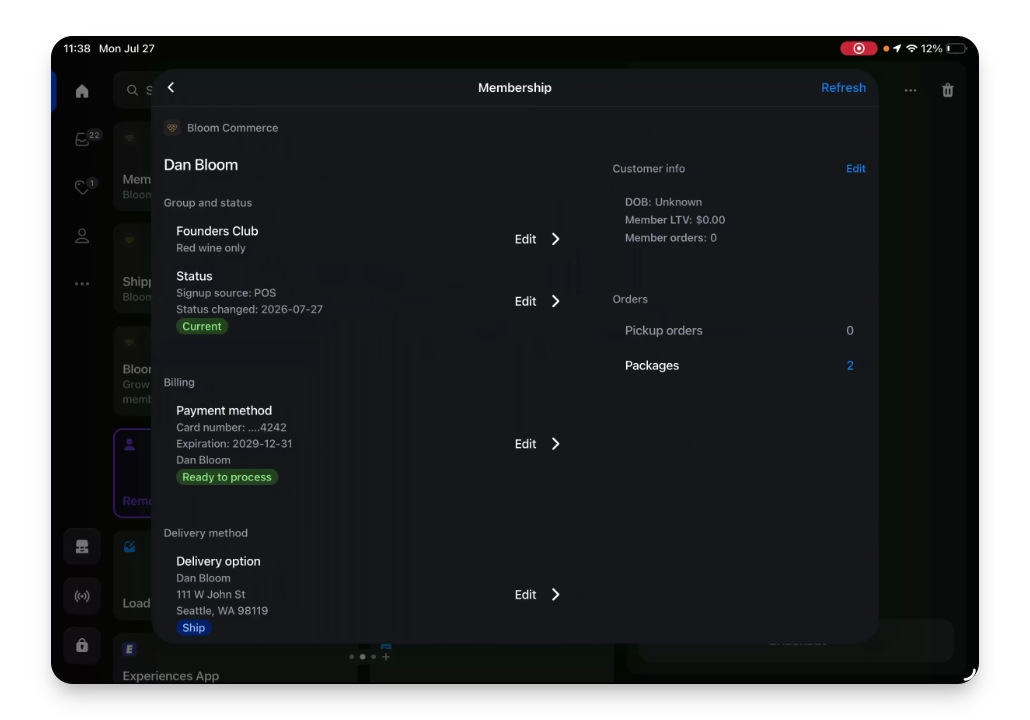
This guide will walk you through creating a new club membership for a customer, including adding the customer if they don't already exist. Let's look at the steps:
Step 1: Add the Customer
Check if the customer exists in the database. If not, create a new customer profile for them. Enter the customer's name, phone number, and optionally their address to make later steps easier. Save the new customer by clicking Save in the top right.
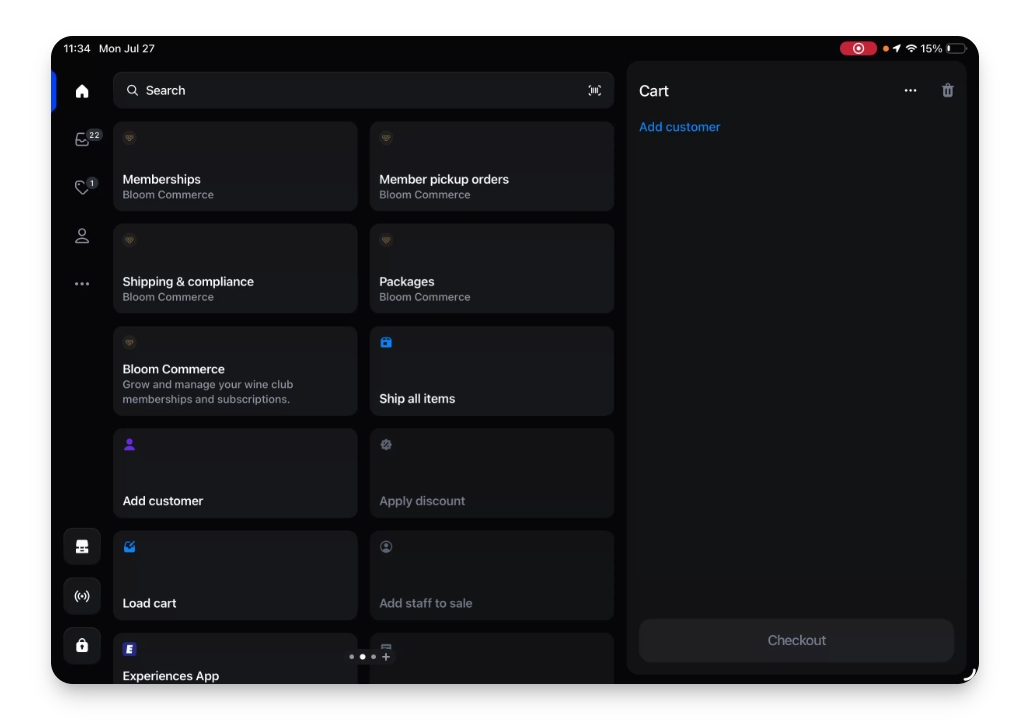
Step 2: Confirm Customer Details
Ensure that the customer's address, email, phone number, and name are correctly saved.
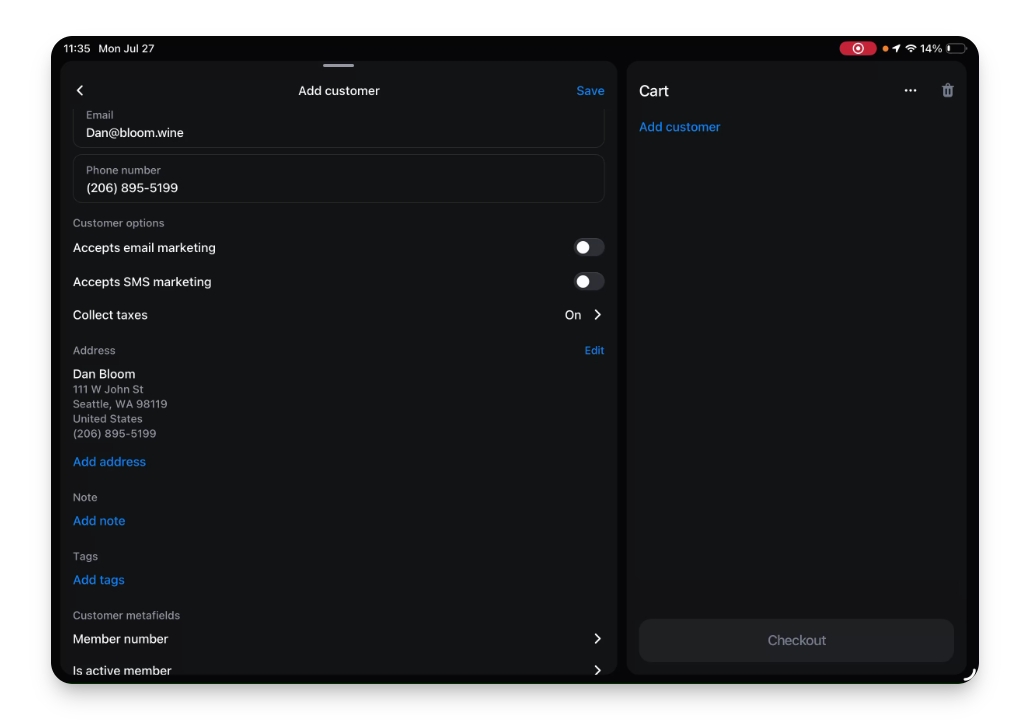
Step 3: Go to the Bloom Memberships Tile
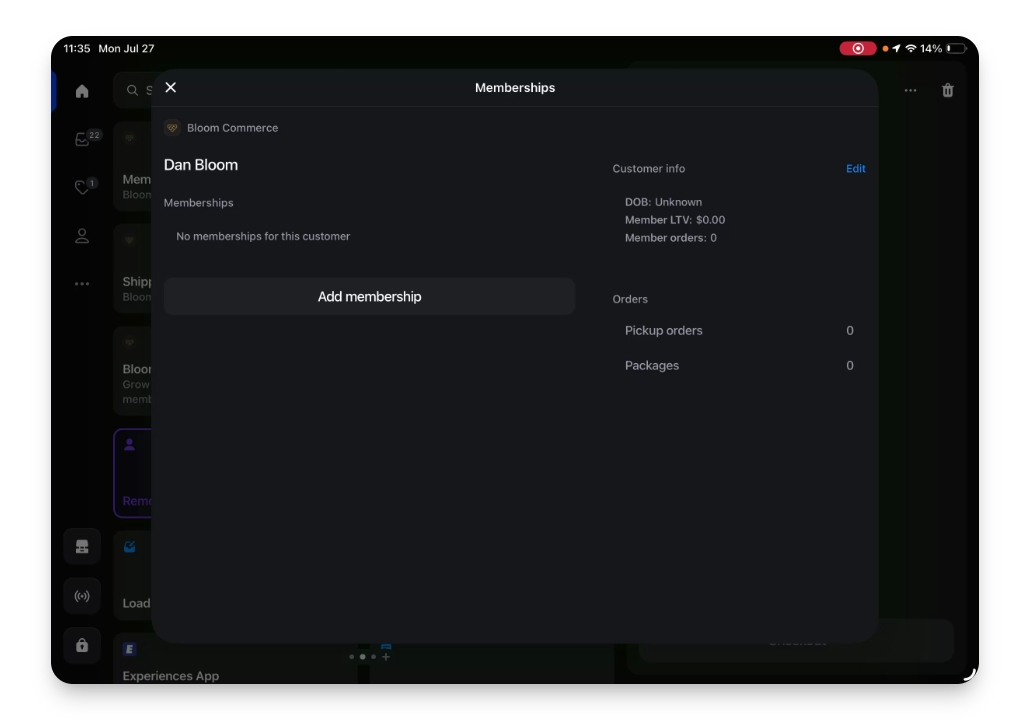
Navigate to the Memberships tile. Once it loads, verify that the customer does not already have a membership.
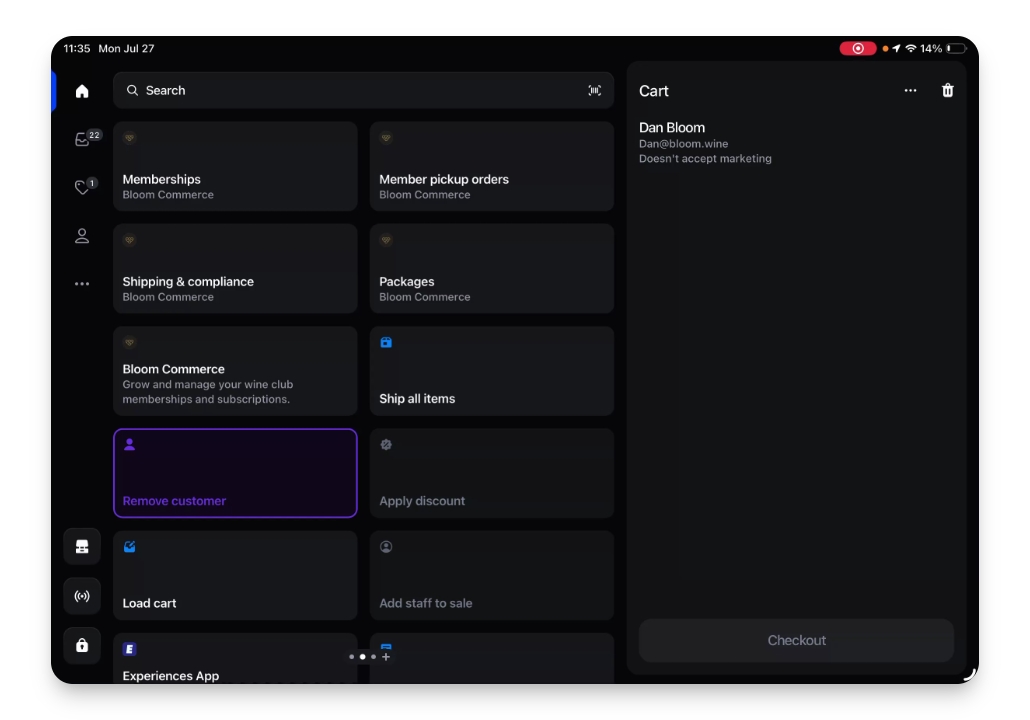
Step 4: Add a New Membership
Select the founders club for the customer. Assign them to the red wine only group. If the summer release is active, customize the release by adding the 2017 cabernet and replacing the 2018. Click Continue to proceed.
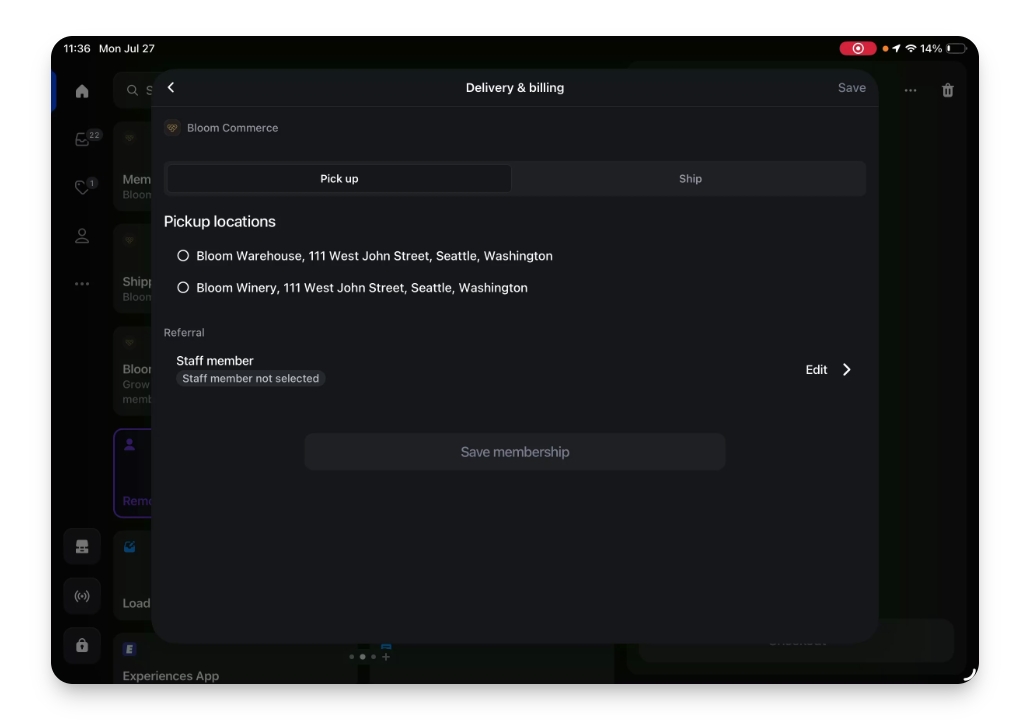
Step 5: Set Delivery preference
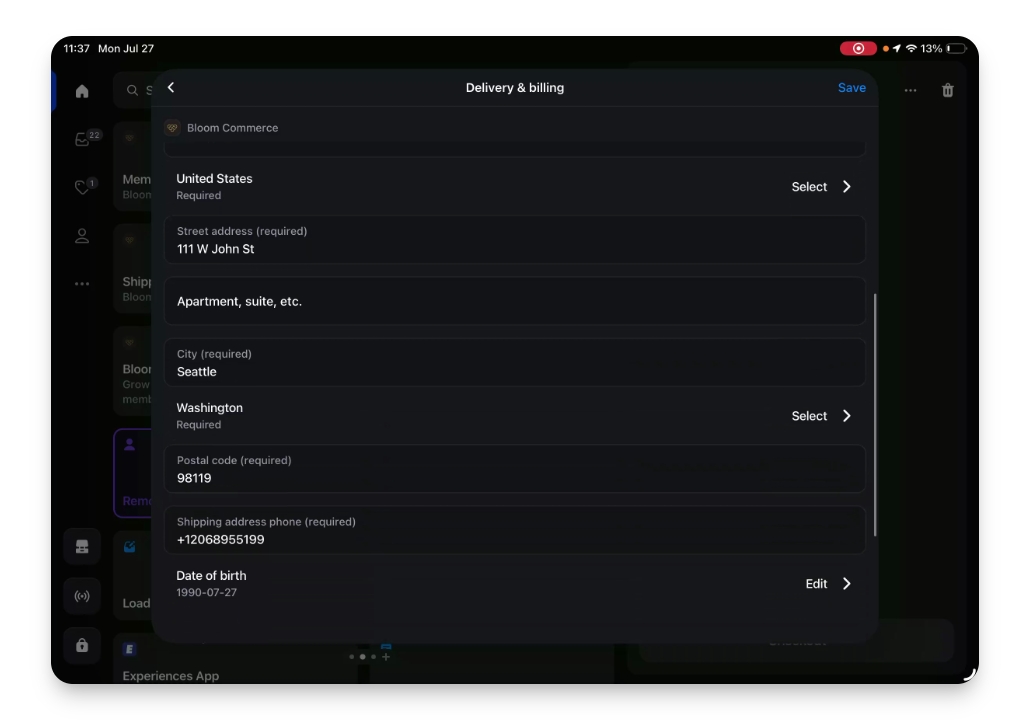
The default delivery method is pickup, but you can choose shipping if needed. Select the saved address and verify it is correct.
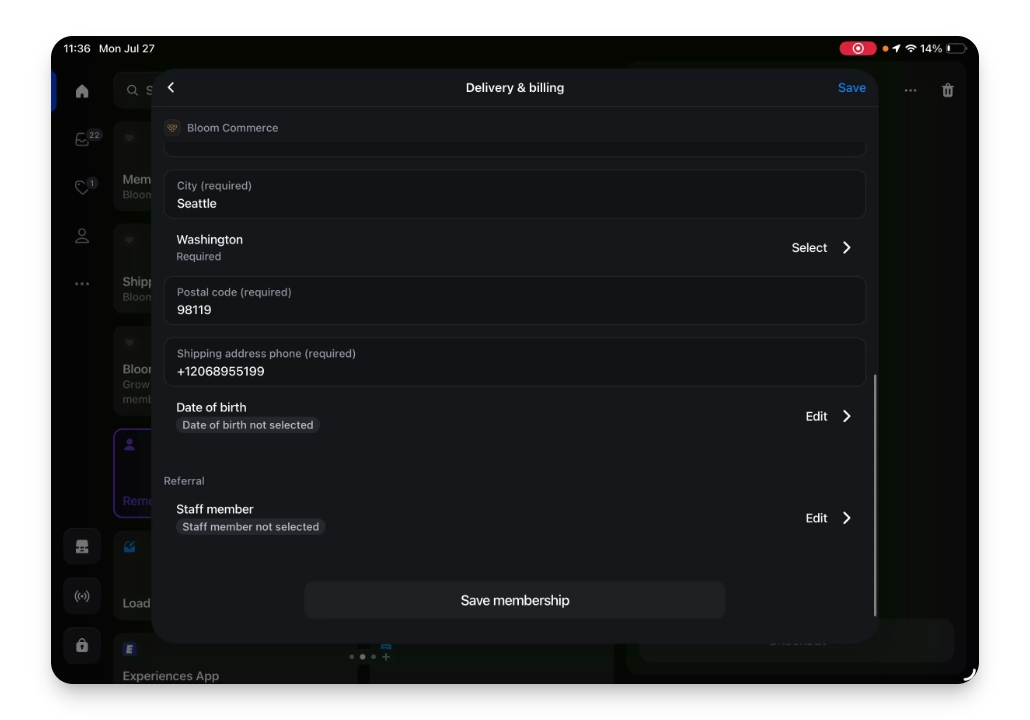
Step 6: Add Date of Birth
Enter the customer's date of birth as required.
Step 7: Enter Referral Information
If applicable, add a referral. You can select from pre-populated names or type in a new name. Click Save to continue.
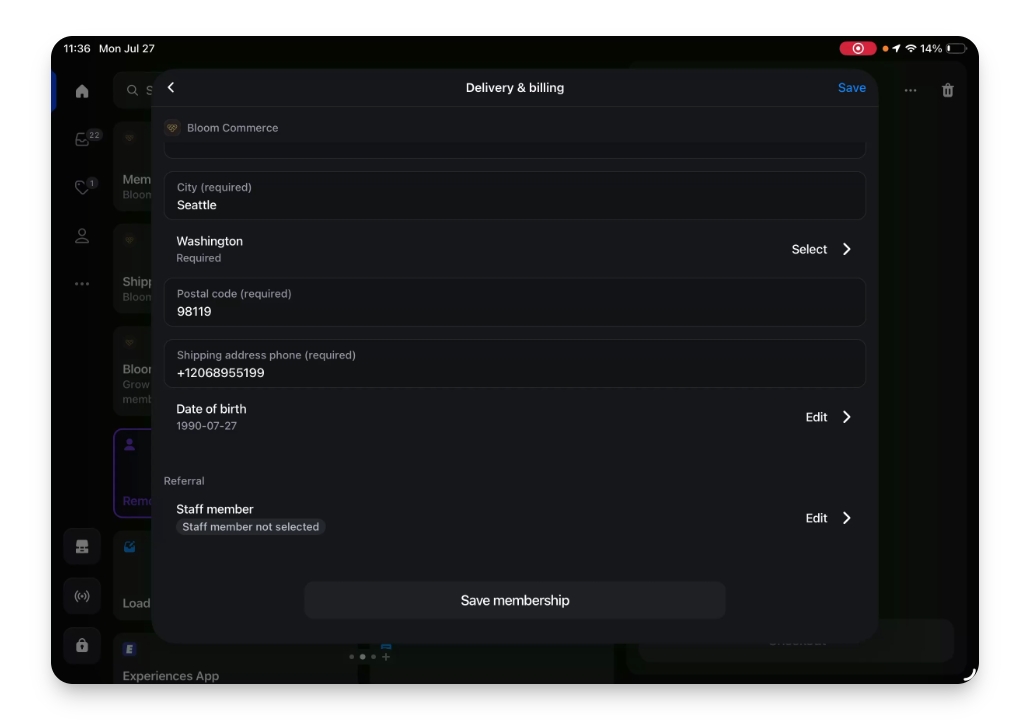
Step 8: Review and Save Membership
Review all entered information and save the new membership.
Step 9: Add Payment Method
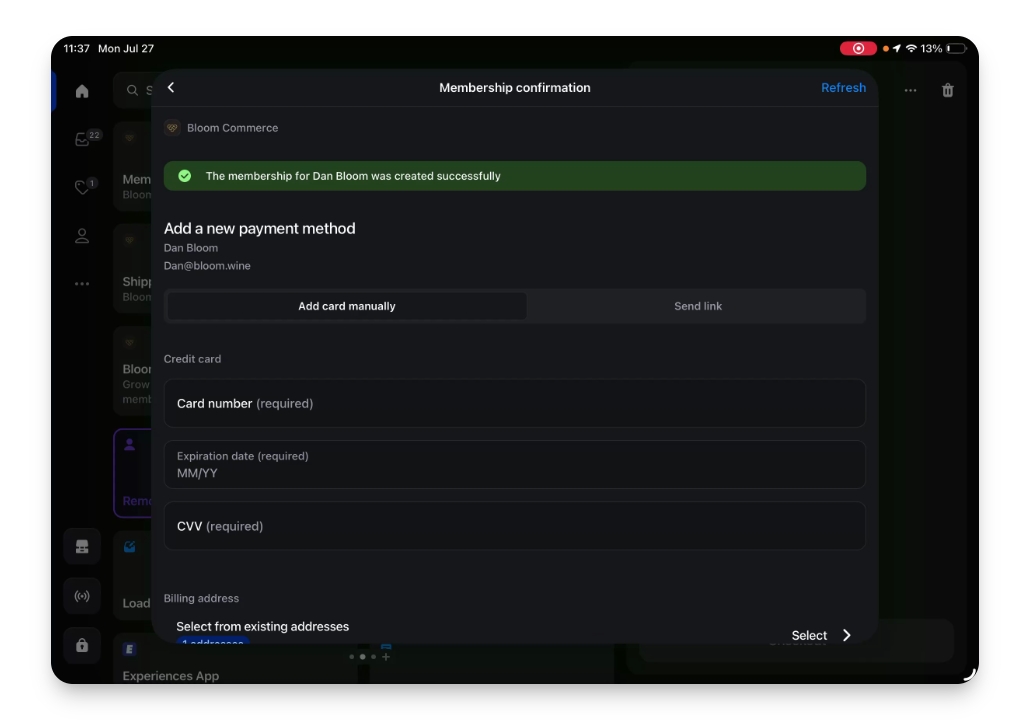
Add a new payment method for the customer. You can manually enter card information and use the saved address for billing, or send a link to the customer to complete billing details themselves. Make sure to include the date of birth if required.
Step 11: Review Membership Details
View and review the customer's membership. Confirm club assignment, billing status, delivery method, and referral information.