TL;DR
1
Access Batches screen
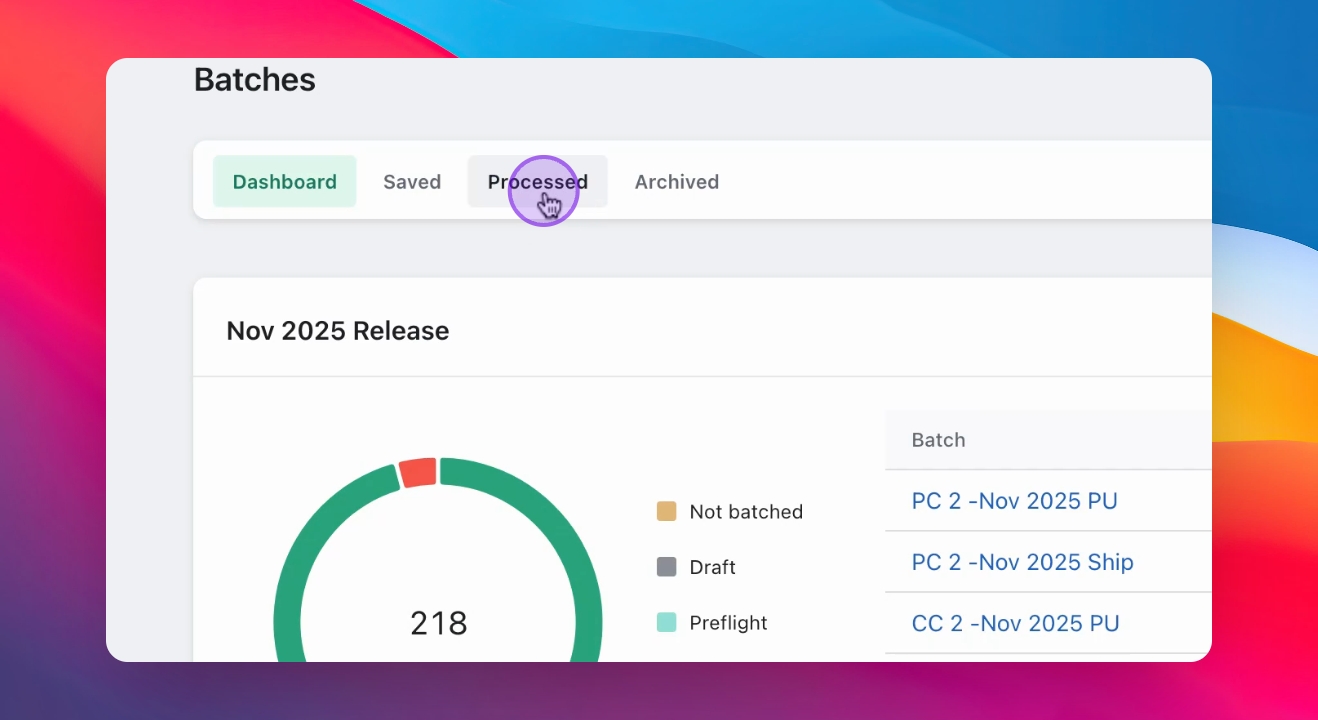
Navigate to the Batches screen and select Process tab.
2
Filter failed payments
Select the batch and filter by status 'fail'.
3
Reprocess payments
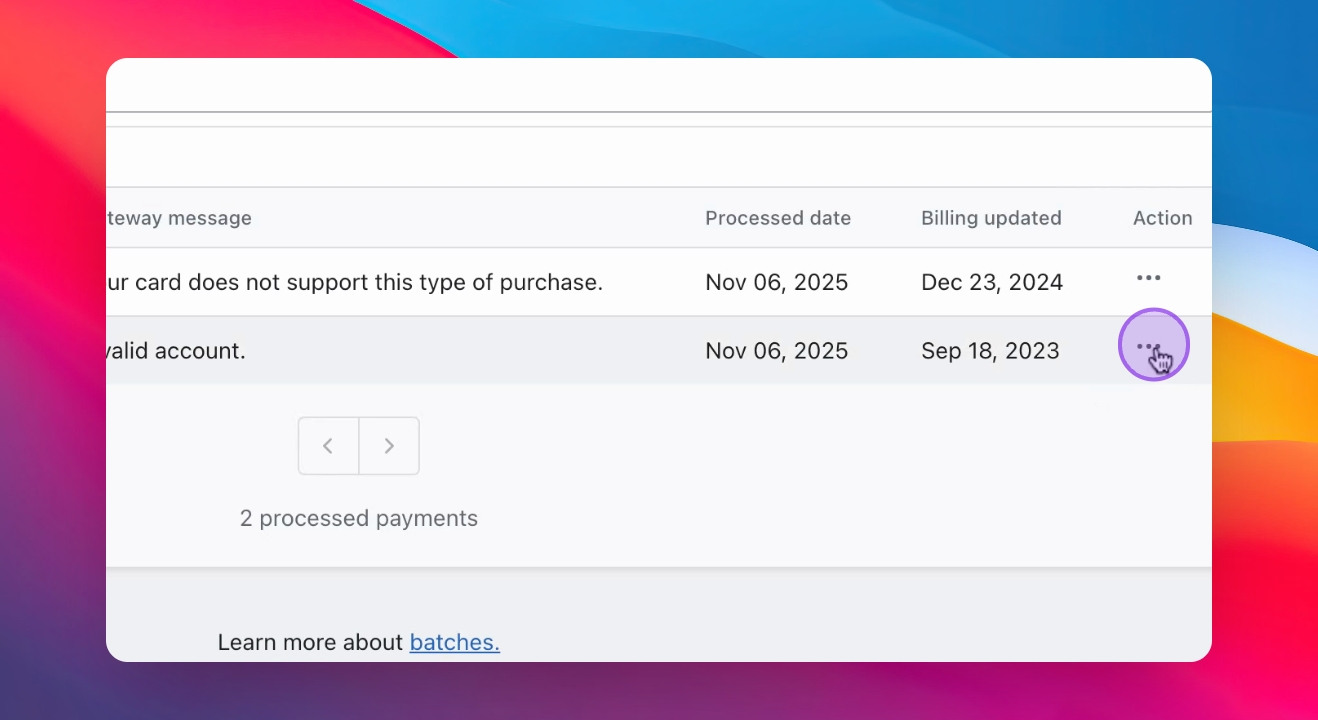
Click three dots and select Reprocess for updated billing.
Let's Do It Together!
Step 1: Navigate to Batches
Go to the Batches screen.
Click on the Process tab.
The Process tab will load with the available batches.
Step 2: Select the Batch
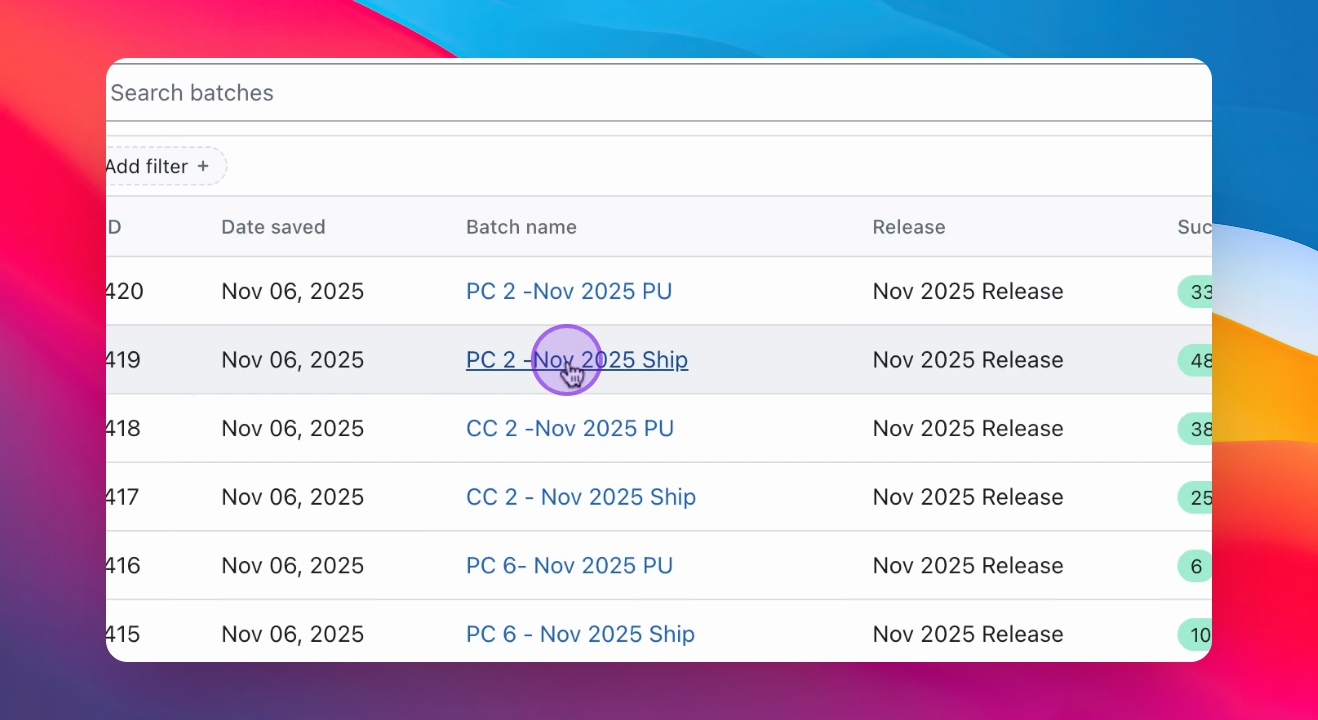
Identify the batch you want to reprocess, such as PC2 November 2025.
Filter by a status of fail to view failed payments.
You will see all failed payments for the selected batch.
Step 3: Reprocess Payments
If a member has updated their billing, click on the three dots next to their payment.
Click Reprocess to attempt charging the member again.
The system will attempt to charge the member's updated billing information.
Only reprocess if you confirm billing updates after the last process date.